Have you recently installed a Sigenergy SigenStor battery at your property and are looking to get the most out of your new energy system? The best way to optimise your Sigenergy system is by utilising the mySigen app.
The mySigen app allows Sigenergy customers to monitor their system’s energy usage in real time, completely customise their settings, and receive tailored recommendations to optimise their system’s performance.
Understanding the ins and outs of the mySigen app will allow you to effectively maximise and control your Sigenergy battery and your solar energy system. In this guide, we will break down the app’s tabs, features and key settings you’ll need to know so you can get the most out of your Sigenergy system.

Your System Overview
When you open the app, you’ll see the Home screen. Here you have a house display showing the real-time energy flow of your home. At a quick glance here, you can see the key live data points from your system in an animated display showing you where your energy is flowing. This display shows:
- How much energy your solar system is producing
- How much energy your household is consuming
- How charged your SigenStor battery stack is and how much energy is being pulled from the battery stack, if any
- How much energy your EV charger is using, if you have one installed
- How much energy you are pulling from and sending to the grid, if any
Cool feature alert:
You can change the building type in this display. For example, if you have a commercial SigenStor installation, the home can be changed to a building to reflect that.
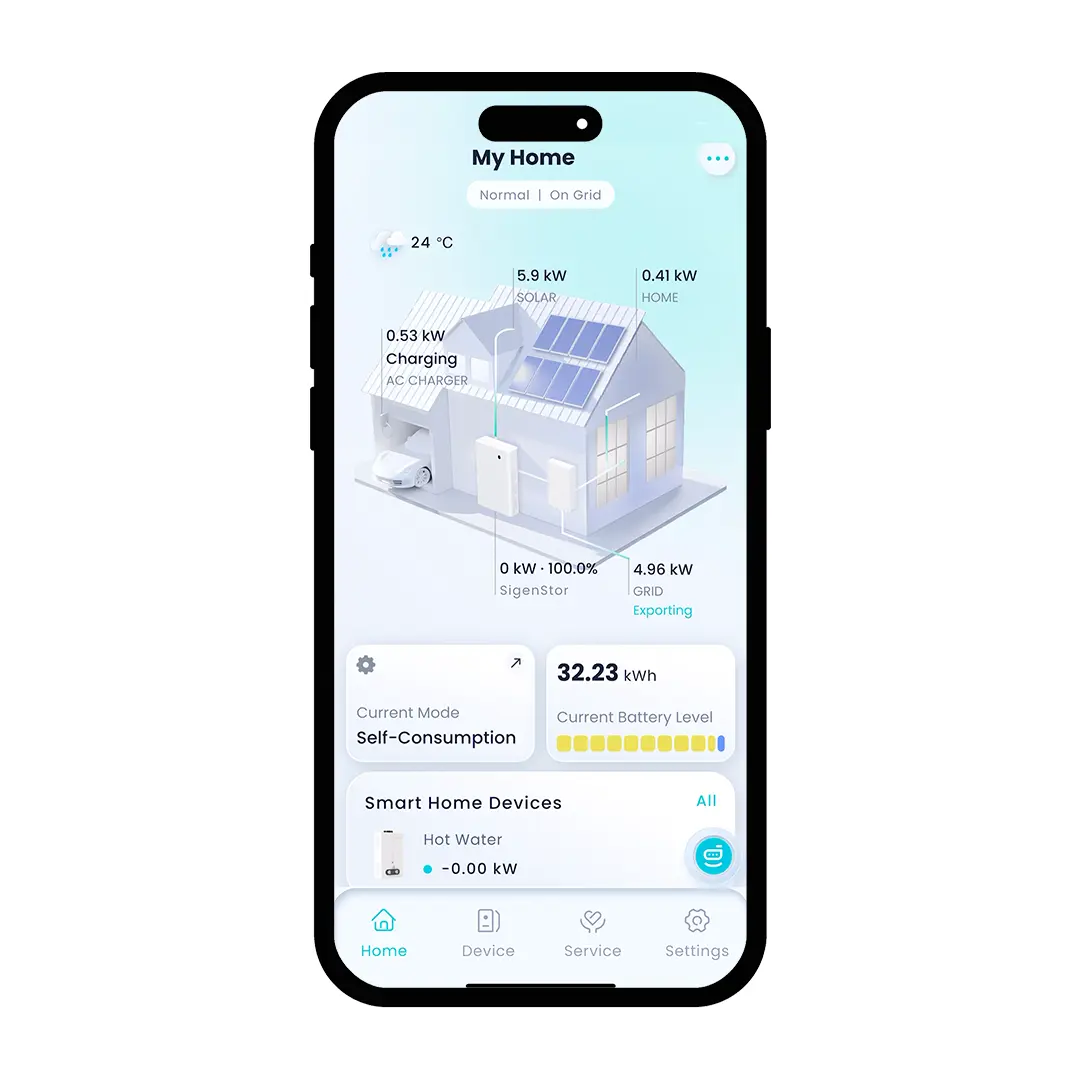
Additionally, at the top of this home page is the toggle for the system’s function mode - there’s Normal and Off-Grid mode. Most of the time, your system will be running in Normal Mode. However, when there’s a grid outage, it will switch over to Off-Grid Mode to provide backup power to your property.
Below the house display, you can see the Current Mode and the Current Battery Level.
The Current Mode displays the operational mode your system is currently working within. If you click on this button, it’ll take you to the Mode setting, where you can choose which mode you want the system to operate in. There are a few different operating modes you can choose from:
- Sigen AI Mode: The Sigen AI can analyse your energy usage to help it decide how to power your property best
- Self-Consumption Mode: Store your solar energy during the day and use it at night to reduce your reliance on grid energy
- Time-Based Control Mode: Manually set the charge and discharge period. For example, discharging from the battery during your energy retailer’s ‘peak hours’ to avoid peak costs
- Fully Feed-In to Grid Mode: This mode is beneficial for those who have signed up for energy trading, as this mode allows you to dictate how much you on-sell to a third party or VPP
- Remote EMS Mode: Here, you can set the scheduling parameters of your system through a third-party EMS.
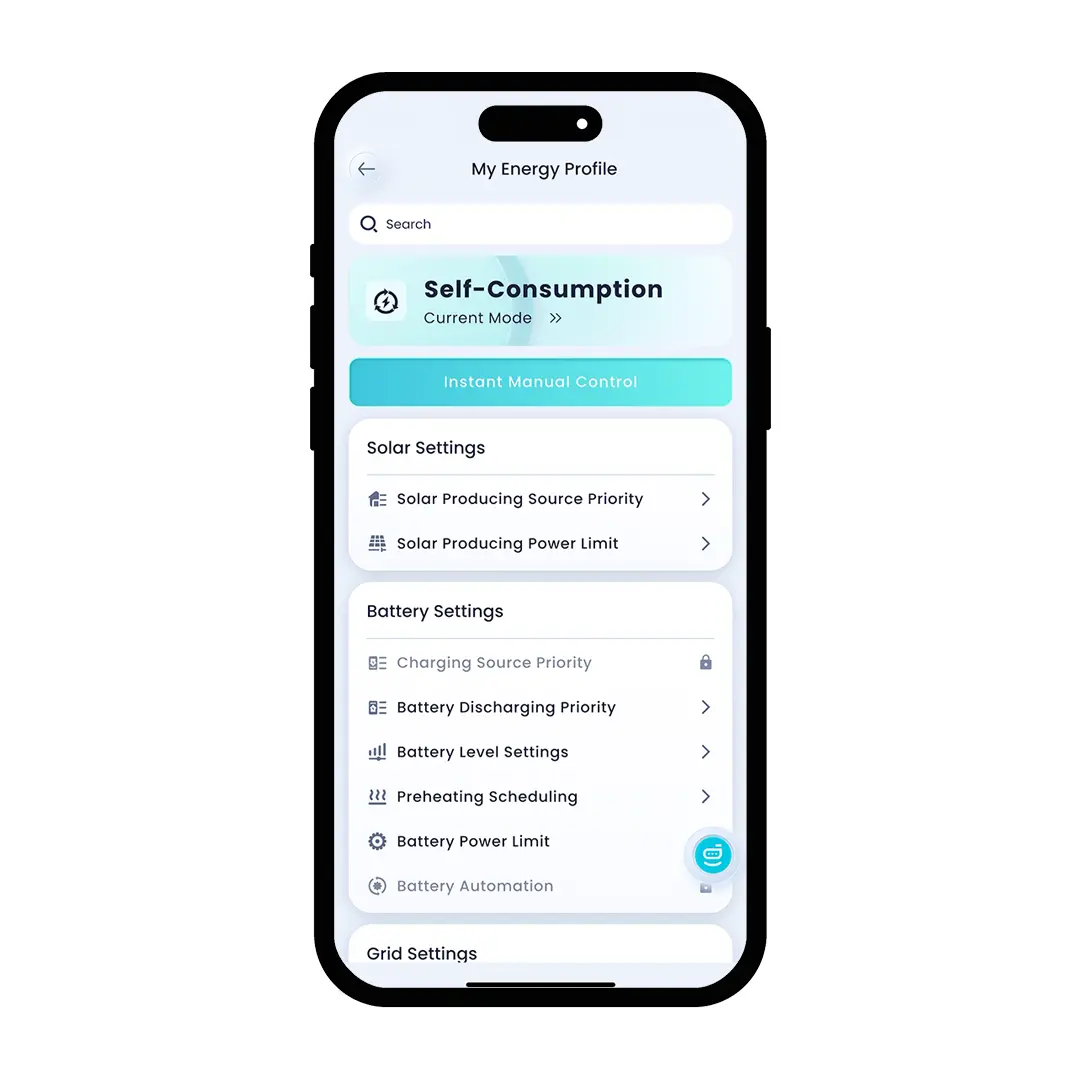
Under the mode selection, you also have access to all the individual settings you can change to customise your system. In here you’ll have:
- Solar Settings: here, you can set your solar production priority and your solar power limit
- Battery Settings: here, you can set your battery discharge priority, battery level settings and your battery power limit
- Grid Settings: here, you can set your grid import and export limits, set your peak shaving and input your tariff (energy) plan - setting this will help the app track your revenue from grid exports and suggest schedules for using your energy at the least cost to you
- Backup Settings: here you can set up your backup reserve, view your backup history and set up your storm watch. Your backup reserve setting allows you to determine how much backup energy you want to deliver in the case of a grid outage. The storm watch feature allows you to schedule certain activities in case of a weather emergency - for example, you can set your system to fully charge your battery if it is notified of an incoming storm.


The Battery Level displays the energy that makes up your battery’s current charge. It shows the real-time state of charge of the battery and visually breaks down the sources from which this energy has come, including PV generation, grid power, inverters, EV V2X and generator input. In here, you can also set the Battery Discharging Priority. This setting allows you to choose the order in which energy is discharged based on its source. For example, if you have an EV, you might set this to be higher than, say, your hot water system, and the system will use your battery’s energy to charge your EV before it provides power to your hot water system. This is one of the settings you can change to make the energy in your system work best for you.

Below these, you’ll find your energy graphs. These graphs each show different key energy metrics for your system. Each graph can show the data on a daily, weekly, monthly or yearly basis, and you can customise the date range you’re viewing to see recent or historical data.
The first graph you’ll see is the Energy Analysis/Statistics. As a default, the app will show you the Energy Analysis in its Sankey format. This is the industry’s first bi-directional Sankey diagram used to visualise energy flow within a solar system. It allows you to track the energy flow from six energy sources (PV generation, third-party inverter input, battery discharge, V2X discharge, generator power supply and grid power supply) and to five energy destinations (battery charging, EV DC charging, EV DC charging, load consumption and grid export).
Underneath the Energy Analysis sankey diagram, you’ll find your Energy Metrics graph. This graph shows essentially the same information as the Energy Analysis sankey, just in a stacked bar graph format.

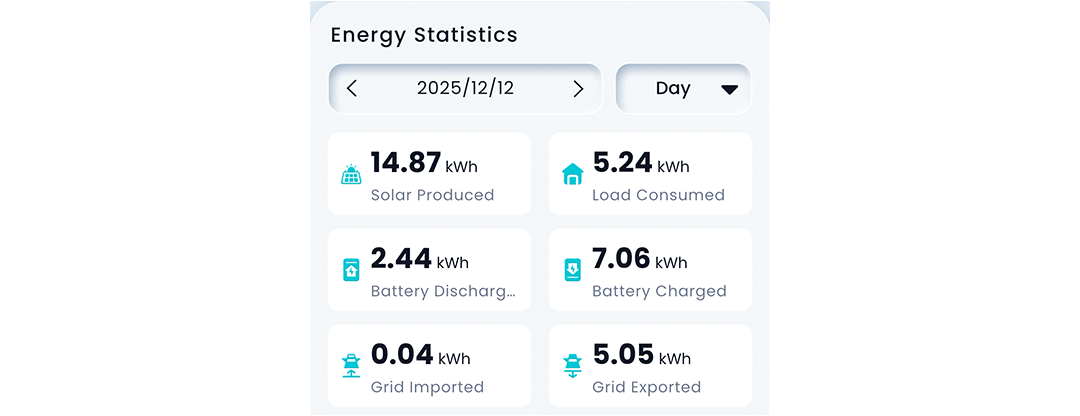
In this section, you’ll also get an Energy Statistics table showing these key metrics:
- Solar Produced - how much energy your system has generated
- Load Consumed - how much energy your property has used
- Battery Discharged - how much energy has been drawn from your battery
- Battery Charged - how much energy went into charging the battery
- Grid Imported - how much energy your system has drawn from the grid
- Grid Exported - how much energy your system has sent back to the grid
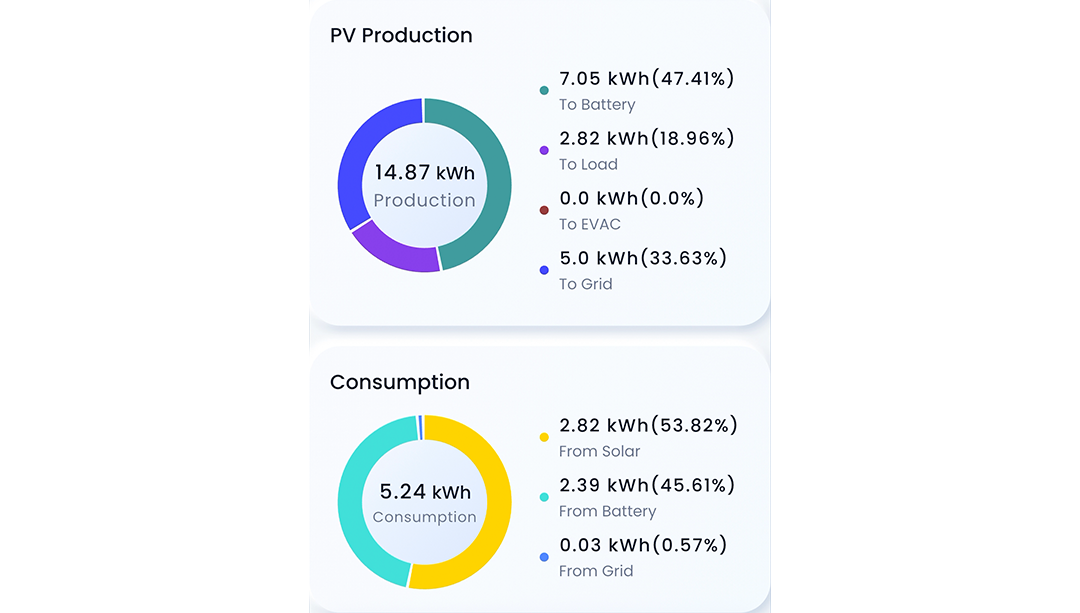
You can change the settings of your app to display this information in a standard pie graph if you’d prefer. If you do use the pie graph system, your data will be displayed slightly differently and will live under the Energy Statistics section. Here, you’ll have two pie graphs showing your PV Production and your Consumption.
The PV Production graph shows you how many kWh your solar system has generated, and is broken down by where the energy has been used (ie, how much went to your home and how much went to charging the battery). The Consumption graph shows you how much energy your property has used, and is broken down by where that energy comes from (ie, how much came directly from solar and how much was drawn from the battery).
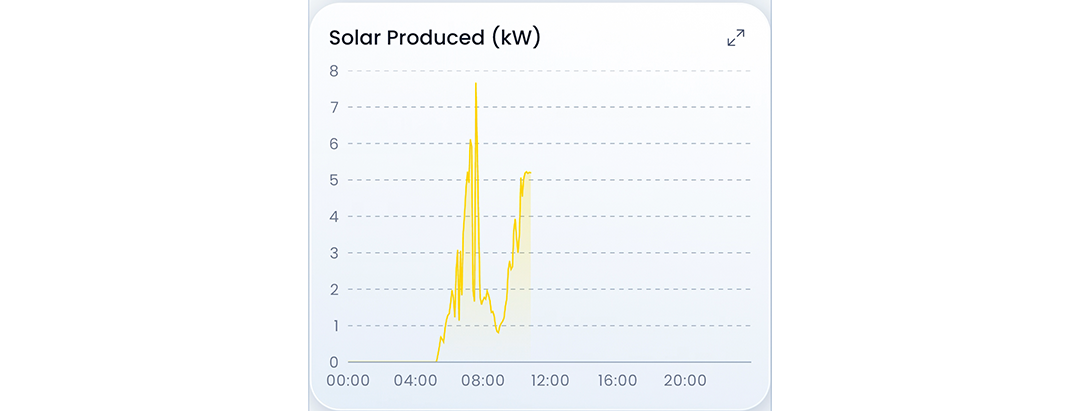
Underneath the pie graphs, you’ll have two line graphs: one showing solar production and one showing load consumption. These graphs are expressed in kW and showcase how much energy your system generated and how much energy your property consumed, respectively, across a period of time. This way, you can see the exact time of day your system is producing the most energy and what time of day your using the most power.

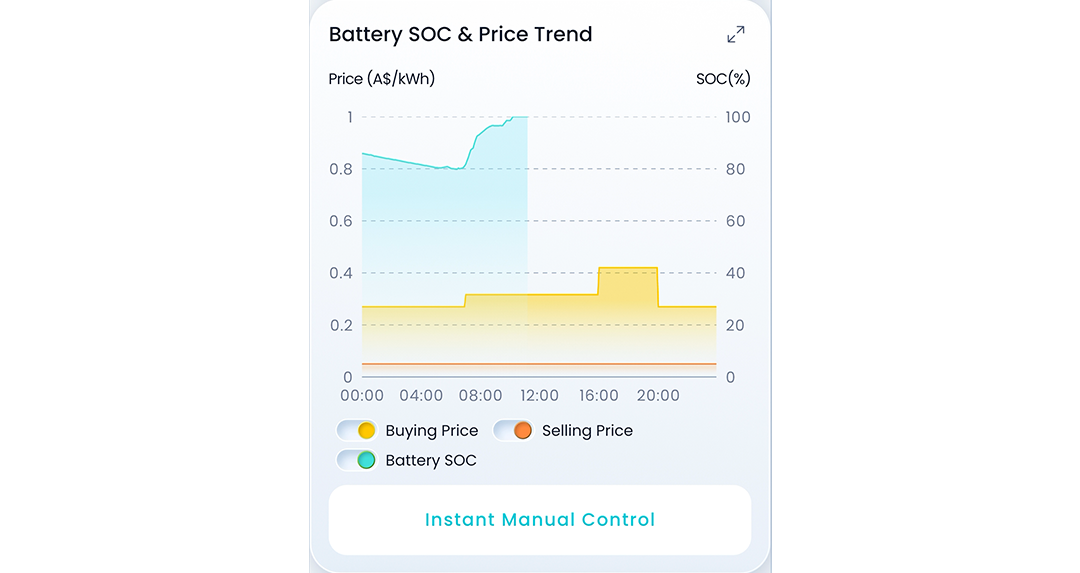
In the next section, you’ll find the Battery SOC (State of Charge) & Price Trend line graph. This multi-tier graph shows the state of charge of your battery across time, which is expressed as a percentage. It also shows the price trend for buying and selling energy. This information will only be displayed if you’ve correctly input your energy plan details into the app. If you’ve done this, this graph will track how much it costs for your energy retailer to purchase energy from you (buying price) and how much it costs you to purchase energy from your retailer (selling price). These are also tracked across time, as most energy plans now have different buying or selling prices throughout the day.
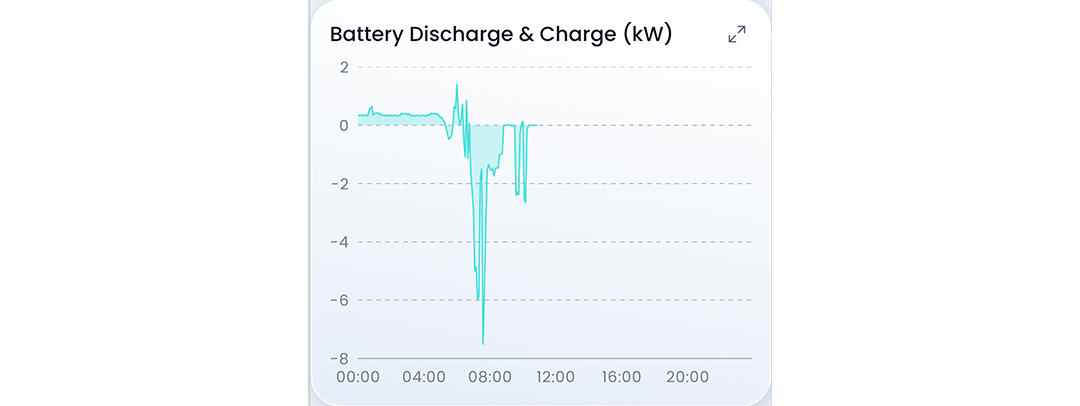
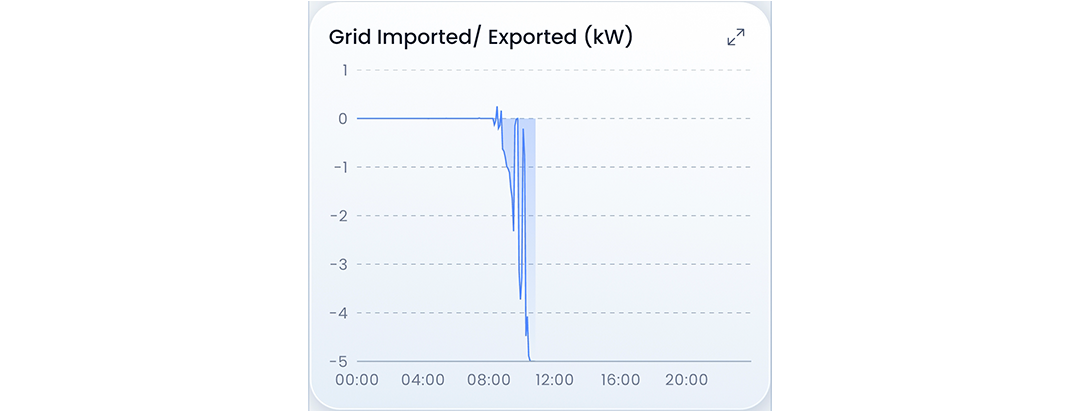
Next, you have your Battery Discharge & Charge graph and your Grid Imported/Exported graph. Both of these graphs are expressed in kW across time, and use 0 as a break between the information.
In your Battery Discharge & Charge graph, the data shown above the 0 line shows how much your battery was discharged, or how much energy was used from the battery. The data below the 0 line shows how your battery was charged, or how much energy went back into the battery.
Similarly, in your Grid Imported/Exported graph, the data shown above the 0 line shows how much energy was imported from the grid. The data below the 0 line shows how much energy was exported back to the grid.
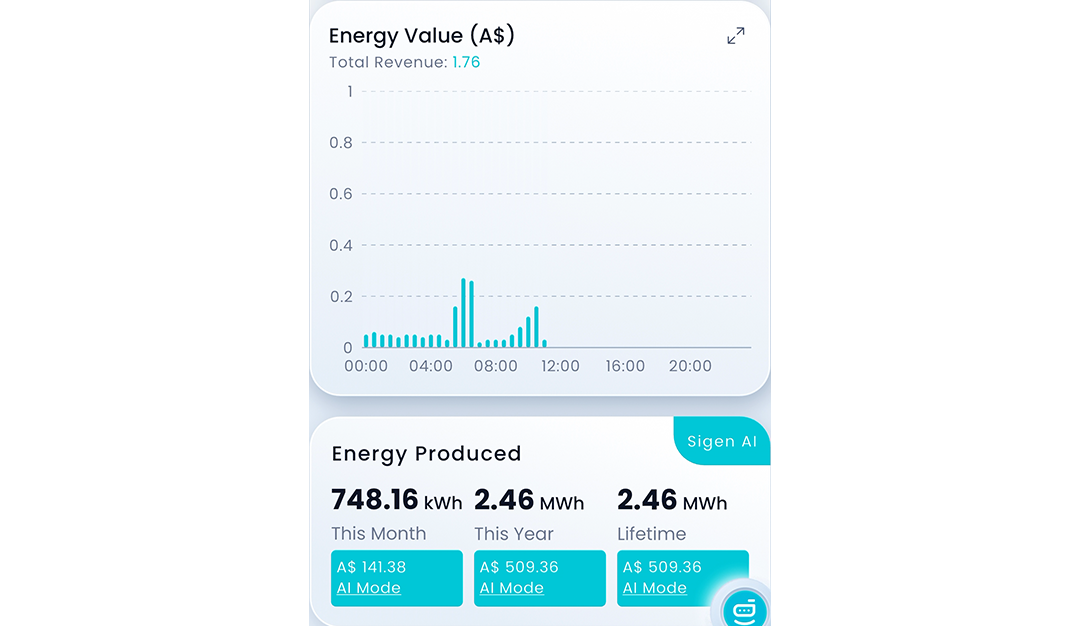
Finally, if you have your energy plan set up in the app, you’ll have the Energy Value graph. This graph tracks the revenue your system is generating by exporting energy back to the grid. It will also display at the bottom how much energy the system has produced this month, this year and in the system’s lifetime, and how much money it has made for you within those same timeframes.
Your Devices Overview
In the Device tab, you’ll see a display of the current status of each component in the system. You can see the active power from the inverter, the energy draw from the DC charger, and the state of charge for each individual battery module.
You can click into each component to see more detailed information, real-time statistics and device parameters, which is particularly useful if there is something not working right in your system.

In the device view, you can also access the Sigen Shield. You’ll see an “S” in a little glowing circle. If you click into that, it opens the Sigen Shield 3D safety view. This is a unique feature of the SigenStor device, which allows you to see a clear 3D view of the internal safety system and precautions within your SigenStor components.
Underneath your device's overview, you have the Sigen Device section. Here you can see information about the other solar components in your system that aren’t a direct part of the SigenStor stack, such as your panels and your Sigen Gateway.
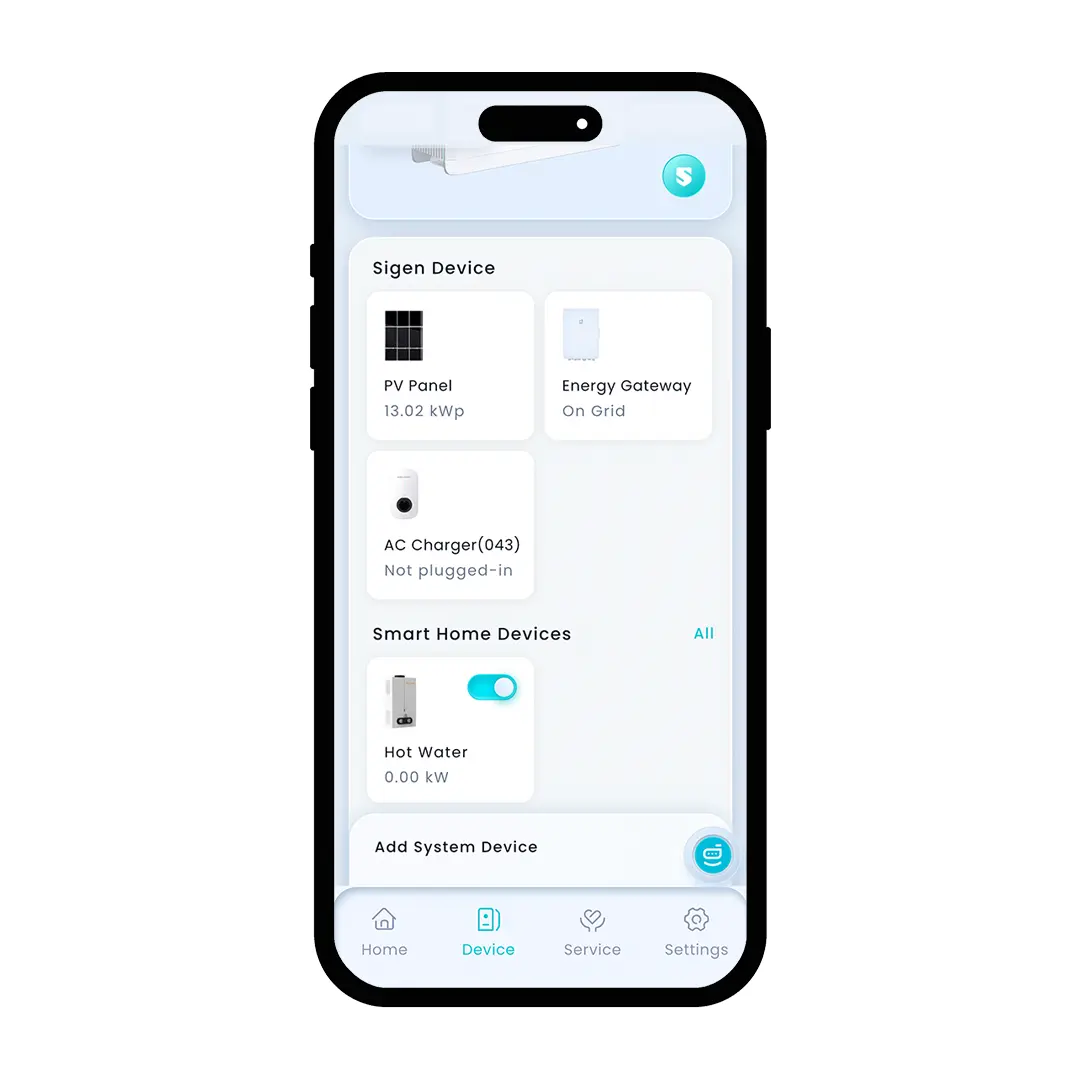
Similarly to your SigenStor components, you can click into each to get more detailed and real-time information. So, if you click into your PV Panel, it will show you detailed graphs of the solar generated by the panels. You can even isolate it by each string of panels in your array. So if you have a string of panels on one side of your home’s roof and another string on the other side of the roof, you can see which string is generating more energy for you. This is good information to know, so you can better understand your system.

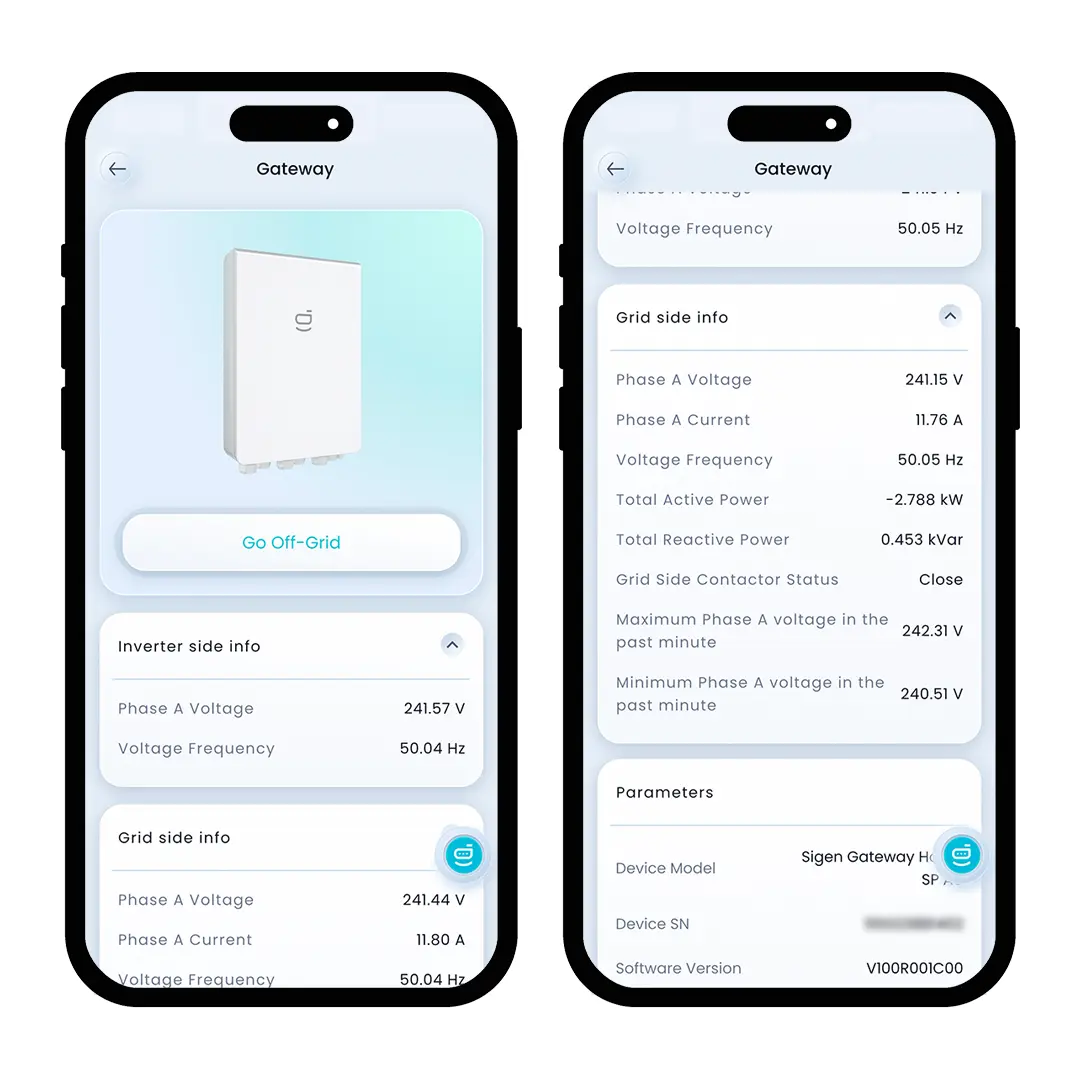
Also in this section, you’ll find your Sigen Gateway. The Sigen Gateway is the central component monitoring the energy flowing in and out of your system. So, if you click into the Gateway, you’ll be able to see real-time information on the current, voltage and frequency of the energy in your system. Here, you can also simulate a blackout by selecting “Go Off-Grid”.
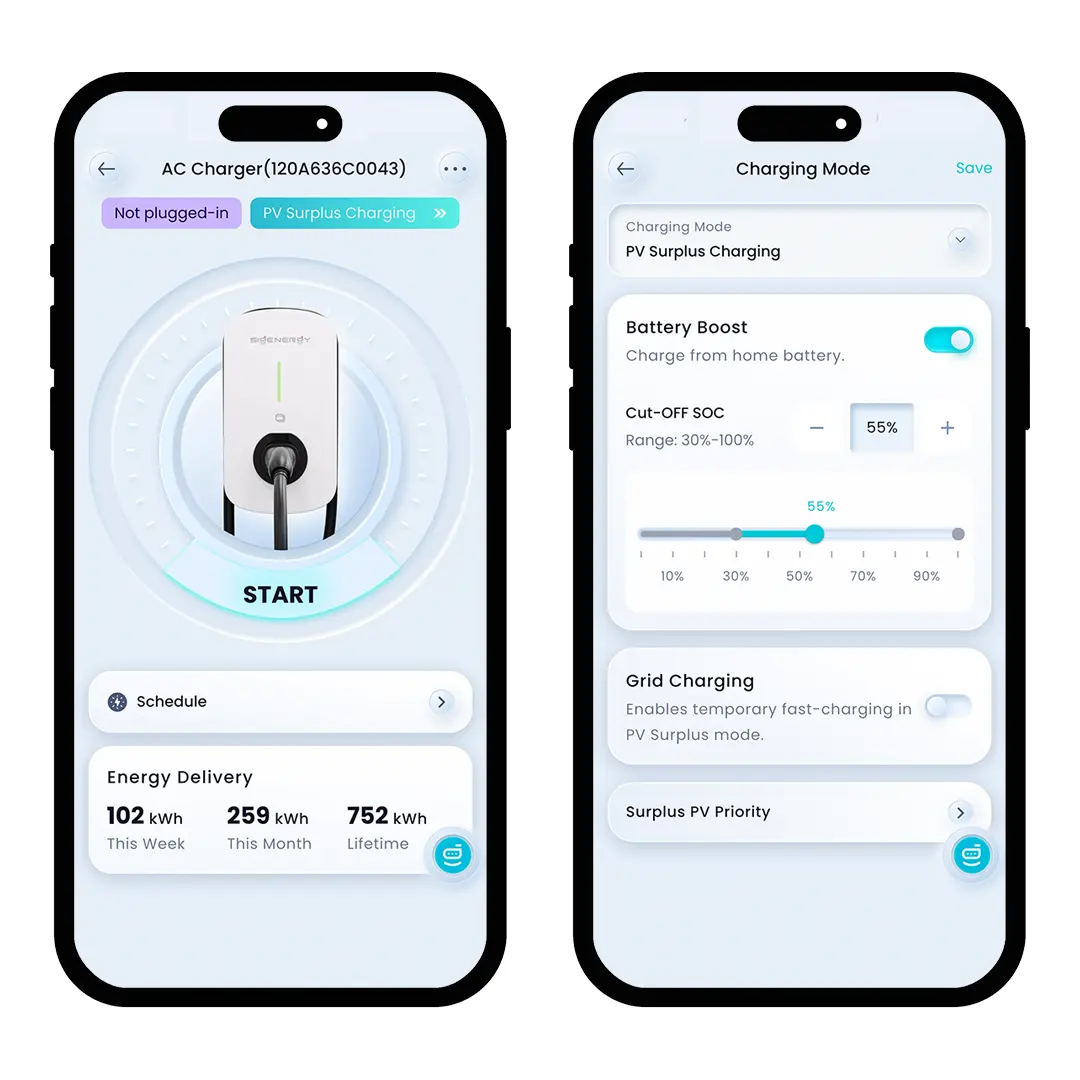
If you have a Sigenergy EV Charger in your system, you’ll also see that in here. If you click into your EV charger, you’ll be able to access a few settings that determine how your system uses energy to charge your vehicle. Here you can determine the charging mode: if your system uses the battery to ensure the EV is fully charged, if your system can draw energy from the grid to charge the car, or if the car is only charged from excess solar energy. You can also set up a schedule for your EV charging, so you can determine specific times of the day when your EV is charged by the system, which is particularly useful for homeowners who are on an energy plan that gives them a period of free grid energy.
Below this, you can add a Sigen System Device. This is where you can add third-party components and smart devices that the SigenStor can interact with or have control over. For example, if you have a hot water heater that you’d like to power with your solar system, you can add it in here. Connecting devices to your system here allows you to have control over how your energy interacts with these devices, and therefore, you can optimise your system to work in your favour.
The Service Tab
Within the service tab, you’ll find everything you need to manage and maintain your system and its components. You’ll find your service provider, which is usually whoever installed your system, and these will be the guys to call if there’s ever a serious problem with your system.
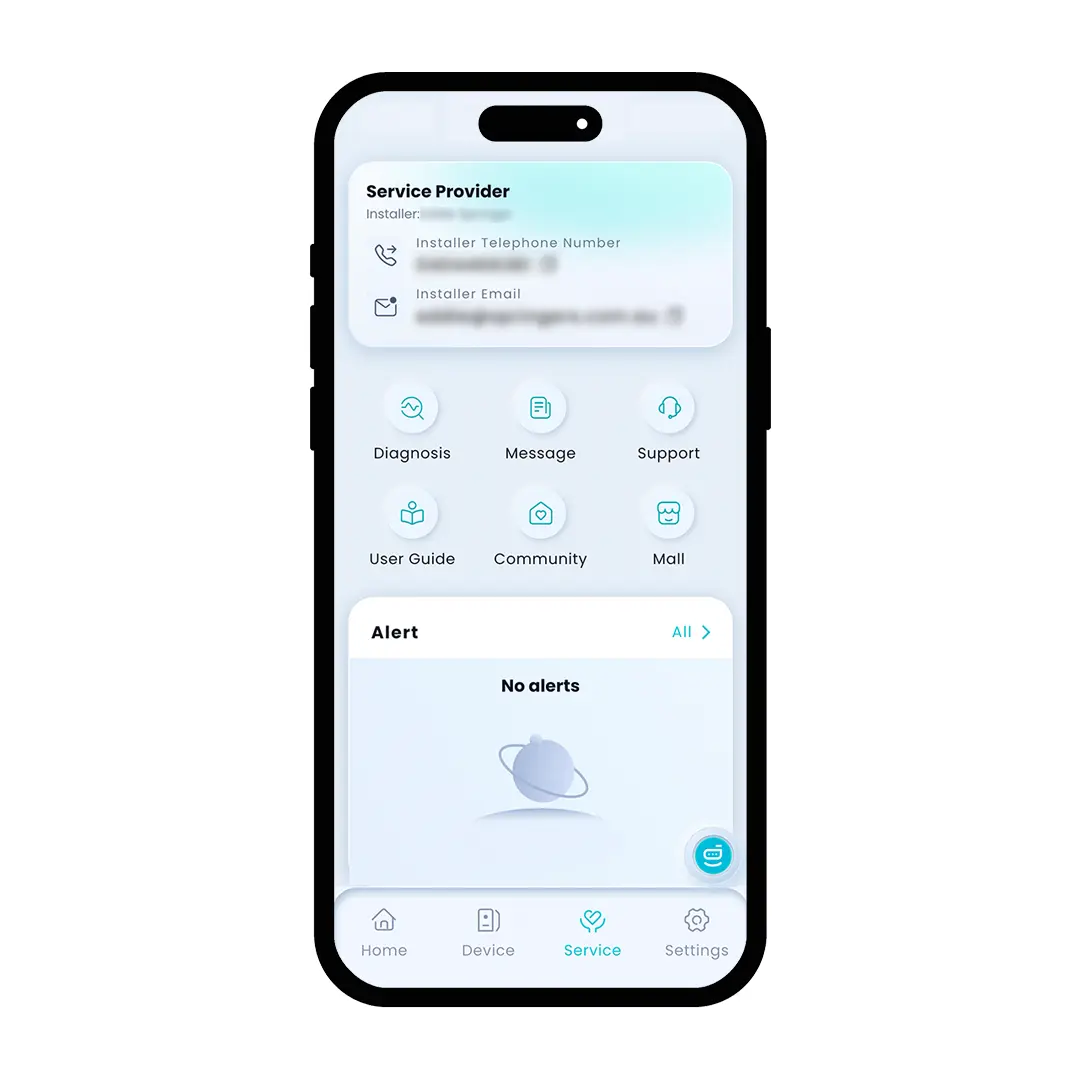
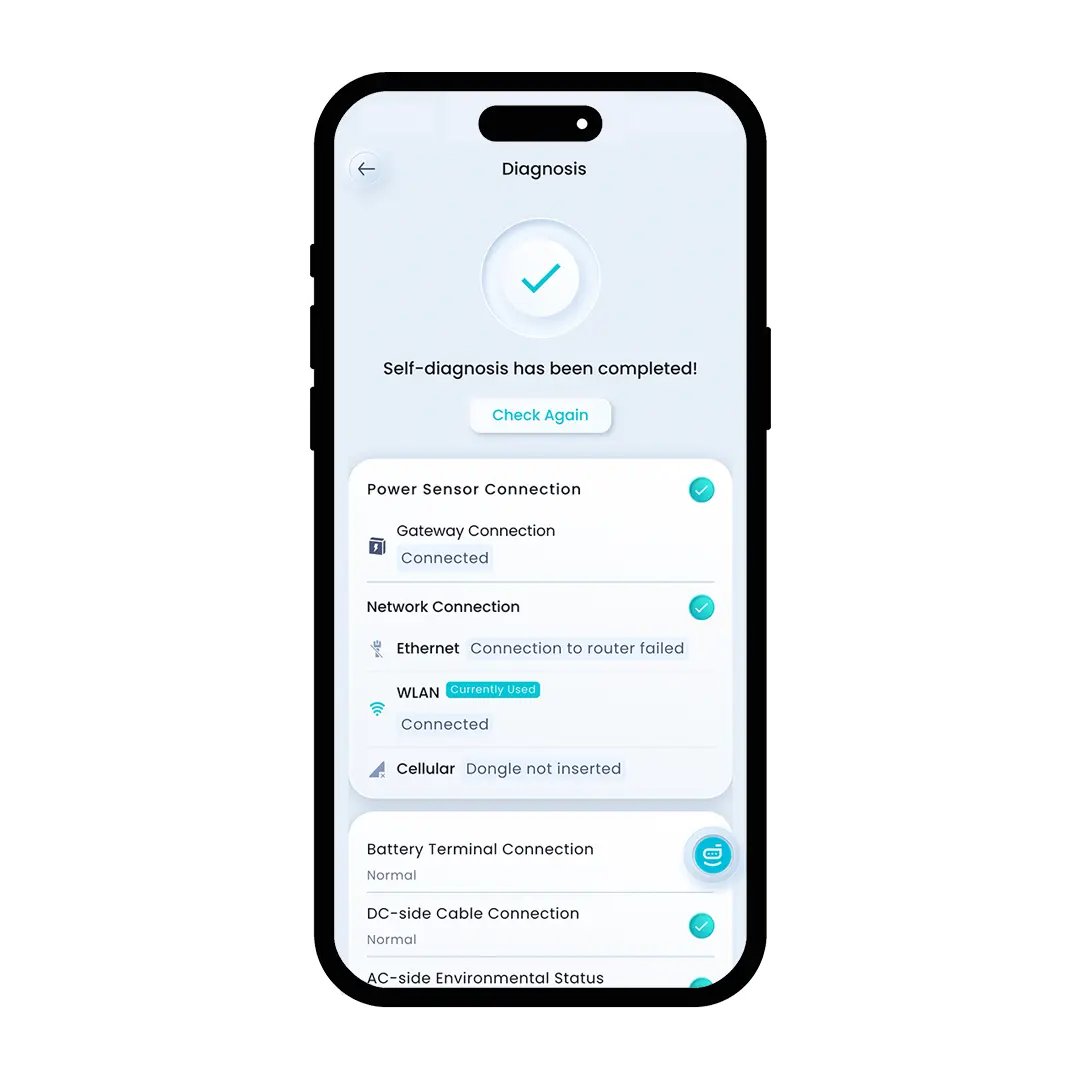
In here, you can also access the Sigenergy Diagnosis tool. This tool utilises the mySigen app’s AI system to provide a one-click system health check. The self-diagnosis function offers a full system check, including: battery terminal connection, DC/AC-side terminal connection, battery health, power meter connection, network connection, and more. If the system determines something to be wrong, it will then prompt you to contact your installer (or a certified service technician) to come out and rectify the problem.
If you need support for your system, you can also click the Support button to lodge a request with Sigenergy.
Also within this section, you have links to user guides and the Sigenergy community. The user guides provided by Sigenergy give you a wide range of information about the components that make up your system, how to use them and how to adjust specific settings to get specific outcomes from your system.
Finally, Your Settings
In the settings, there are a few sections with some different controls that you can access to personalise your system. At the top of the screen, you have your profile settings, which are pretty standard. Then, you’ll have another little diagram of your property, and at the top of that section, you can set/change the basic details of your system. You can also change the diagram of your property there if you want to.
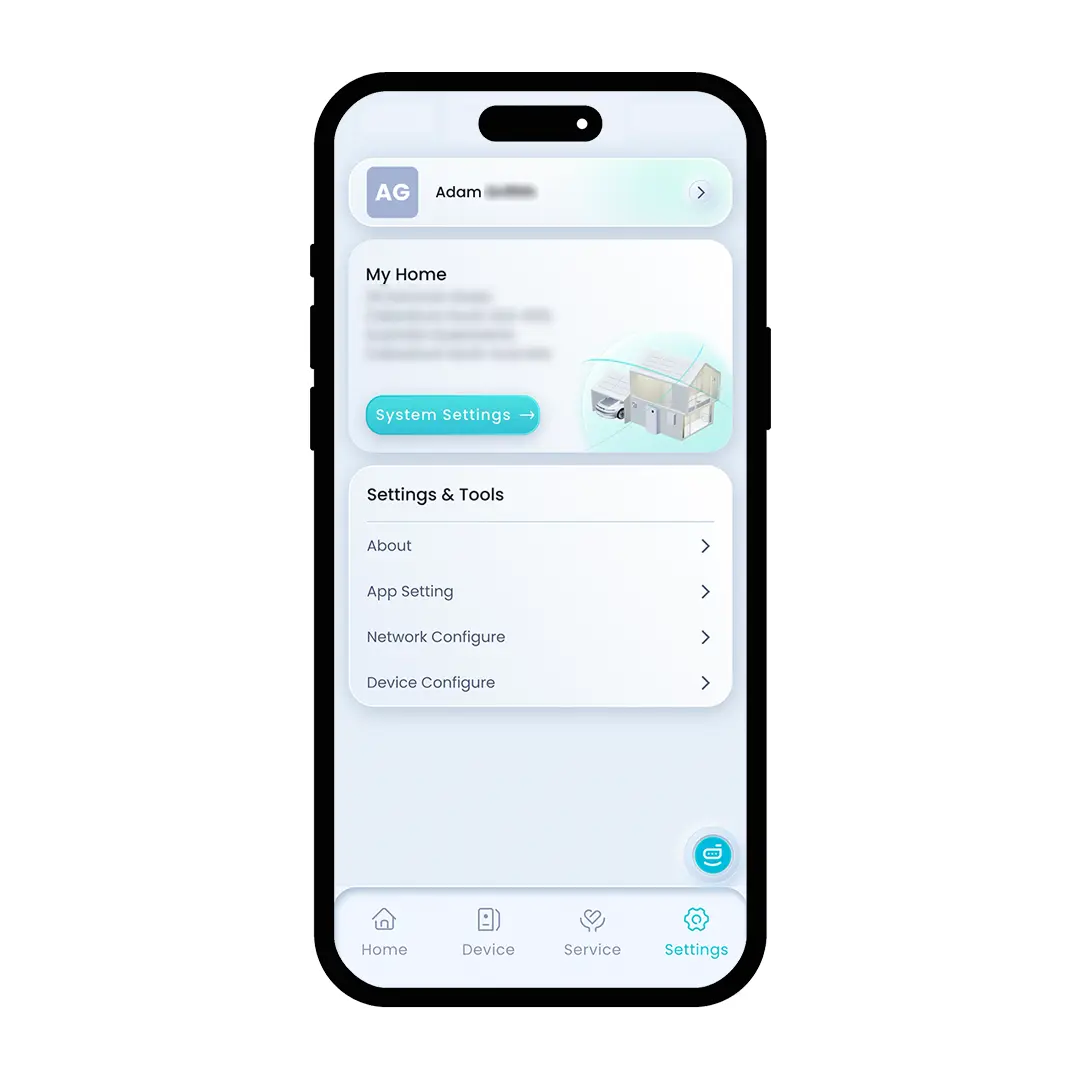
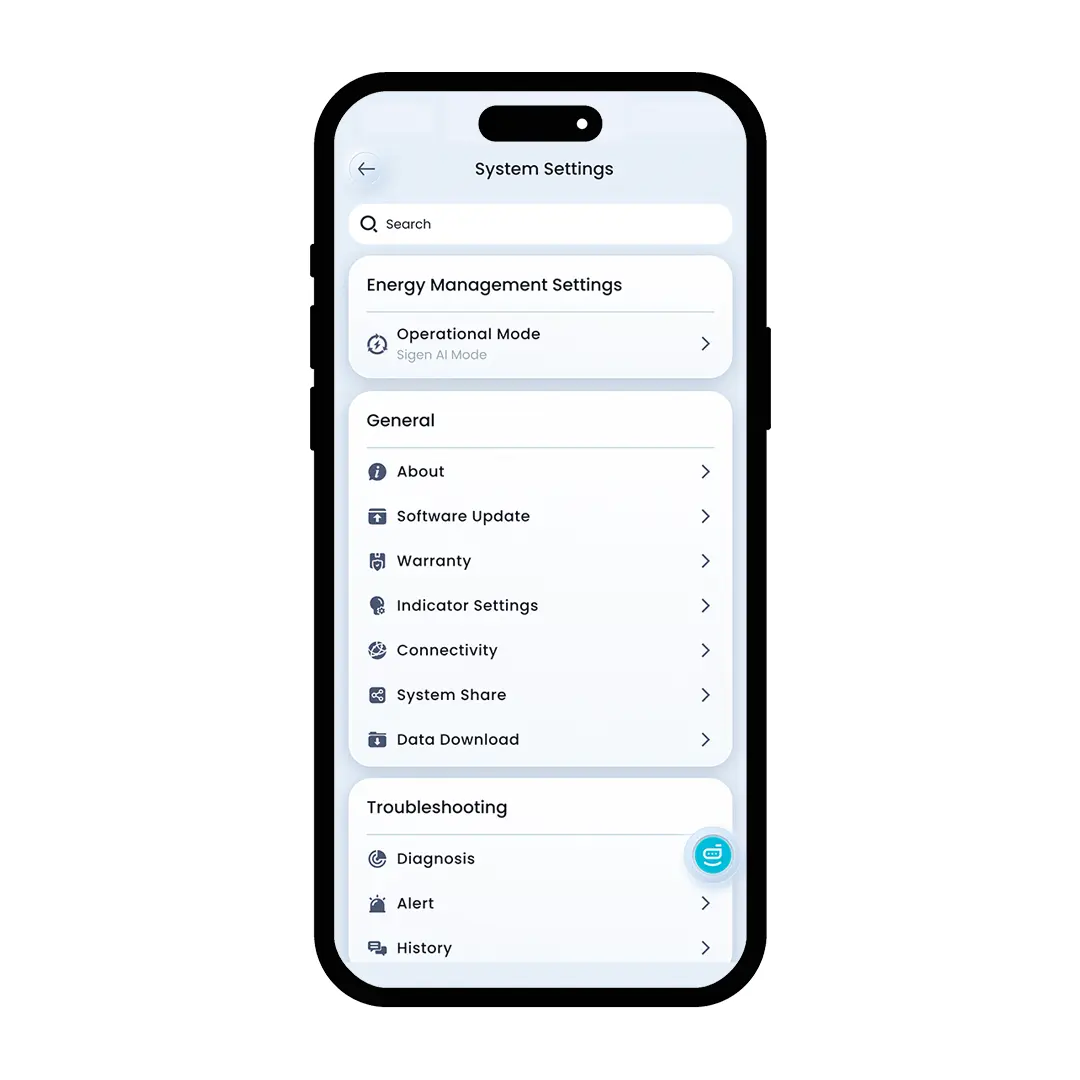
Next to the diagram, there’s a button for your System Settings. In here, you’ll be able to change the operating mode of your system. You can also get general information about the system, check if your system has any software updates and check the connectivity of your system. Additionally, you can access all of your troubleshooting and diagnostic tools from the System Settings, too.
In the next section, you will find your App Settings and Network Configure settings. Your Network Configure settings are where you can check if your system is correctly connected to your WiFi. If your system has disconnected from your WiFi, you can reconnect it in here.
Read More: How to Connect Sigenergy SigenStor to WiFi

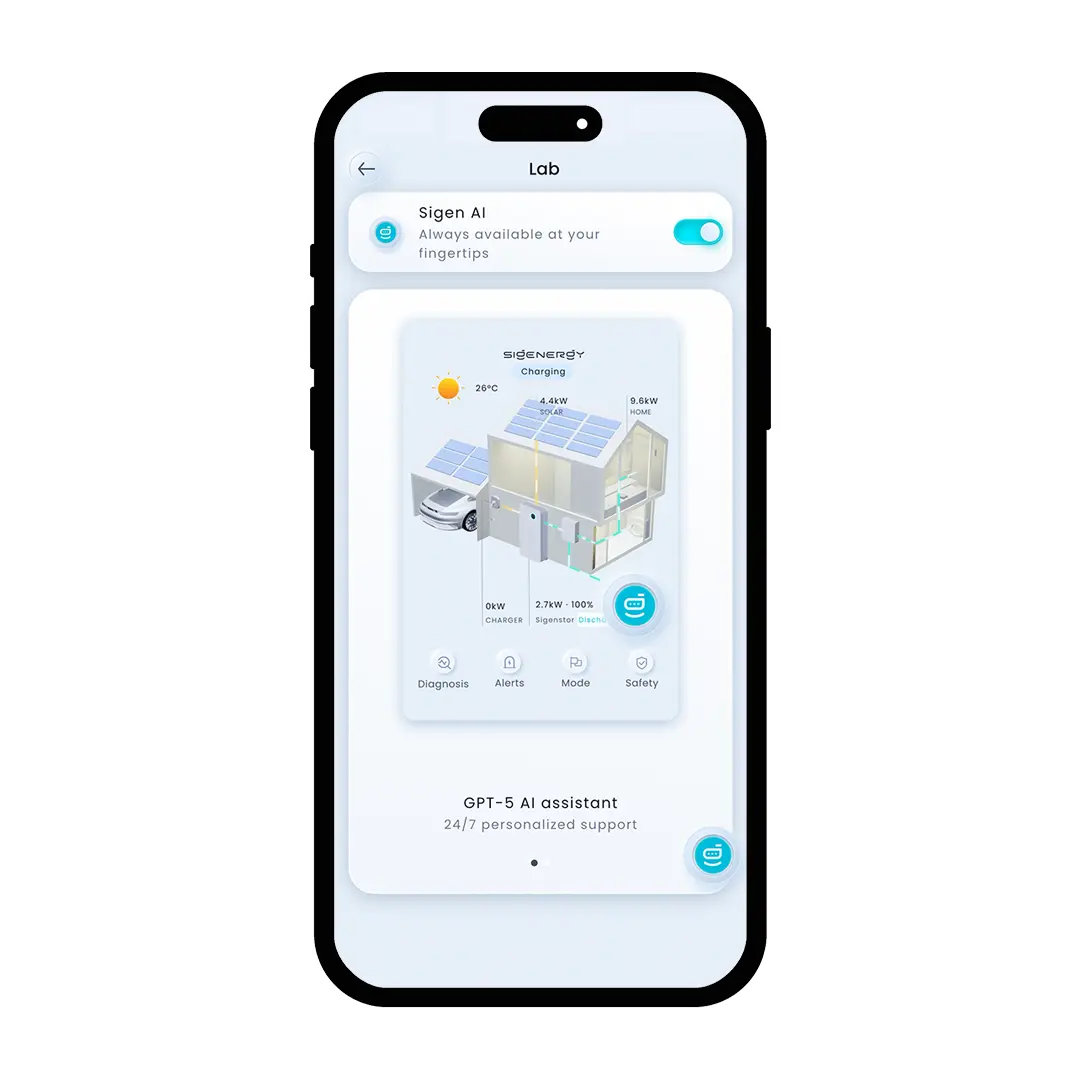
Your App Settings are where you can adjust how the app is set up for you. It is also where you can access the Lab setting. Here, you can turn off the Sigen AI assistant if you choose to.
Installing a SigenStor at your property is the perfect way to maximise the solar you use and reduce your reliance on the grid’s energy.
The mySigen app is the key to maximising the potential of your SigenStor system. It is an amazing tool that SigenStor owners should be utilising to monitor their system’s performance and optimise their SigenStor for their property’s specific needs.
Springers Solar | Queensland's Most Experienced Solar & EV Charger Installer
Springers Solar provides quality components with proven performance, backed by industry-leading warranties, and dedicated after-sales support. Thousands of satisfied customers over more than 23 years of operation make Springers Solar one of the most established and experienced solar companies in Australia.
Springers Solar has received multiple awards for design and installation and is a certified/preferred installer for a large range of solar panel, inverter, and solar battery manufacturers, including Tesla, Sigenergy, and SolarEdge.
Our dedicated in-house team of electrical engineers, project managers, solar PV designers, solar installers and electricians work closely with you before, during, and long after your project is completed. Springers Solar offers an industry-leading 10-year workmanship warranty which is a testament to our qualified staff and offers you outstanding value and peace of mind.
Read more about us here.
How to Monitor Your Sigenergy Battery with the mySigen App