If you can't see any data displayed on your mySigen app or monitoring portal, it is likely that your Sigenergy Inverter has disconnected from your WiFi network.
Don't worry! This just means your system isn't sending data to the monitoring portal. It doesn't mean that your system isn't working.
Your Sigenergy Inverter can disconnect from your WiFi network if you have recently:
- Changed internet providers
- Changed your modem/router
- Changed your WiFi password
- Changed your WiFi extender
- Experienced an outage or blackout
Reconnecting your Sigenergy system to WiFi can easily be done from the comfort of your own home without third-party help.
How to Connect to WiFi
1. Confirm WiFi Signal by the Sigenergy System
On your smartphone, open settings and click on WiFi settings. You should see your home's WiFi network appear here - if you don't, there is something wrong with your WiFi network or modem, and you will need to have this fixed before you can connect your Sigenergy system to WiFi. Once you've confirmed you have access to your WiFi network, you can move on to the next step.
2. Access the QR Code
To reconnect your Sigenergy system to your WiFi, you’ll need to access a QR code on the right-hand side of the inverter, behind the inverter’s cover. If you’ve got a SigenStor stack, the inverter will always be the top module on the stack - it’s also the module with the round LED display.
2.a Remove the Top Cover
First, you’ll need to remove the cover from the top of the battery. At the very front of the cover, there is a groove, which can be used to pull the cover towards you, and then it can be lifted up and off.
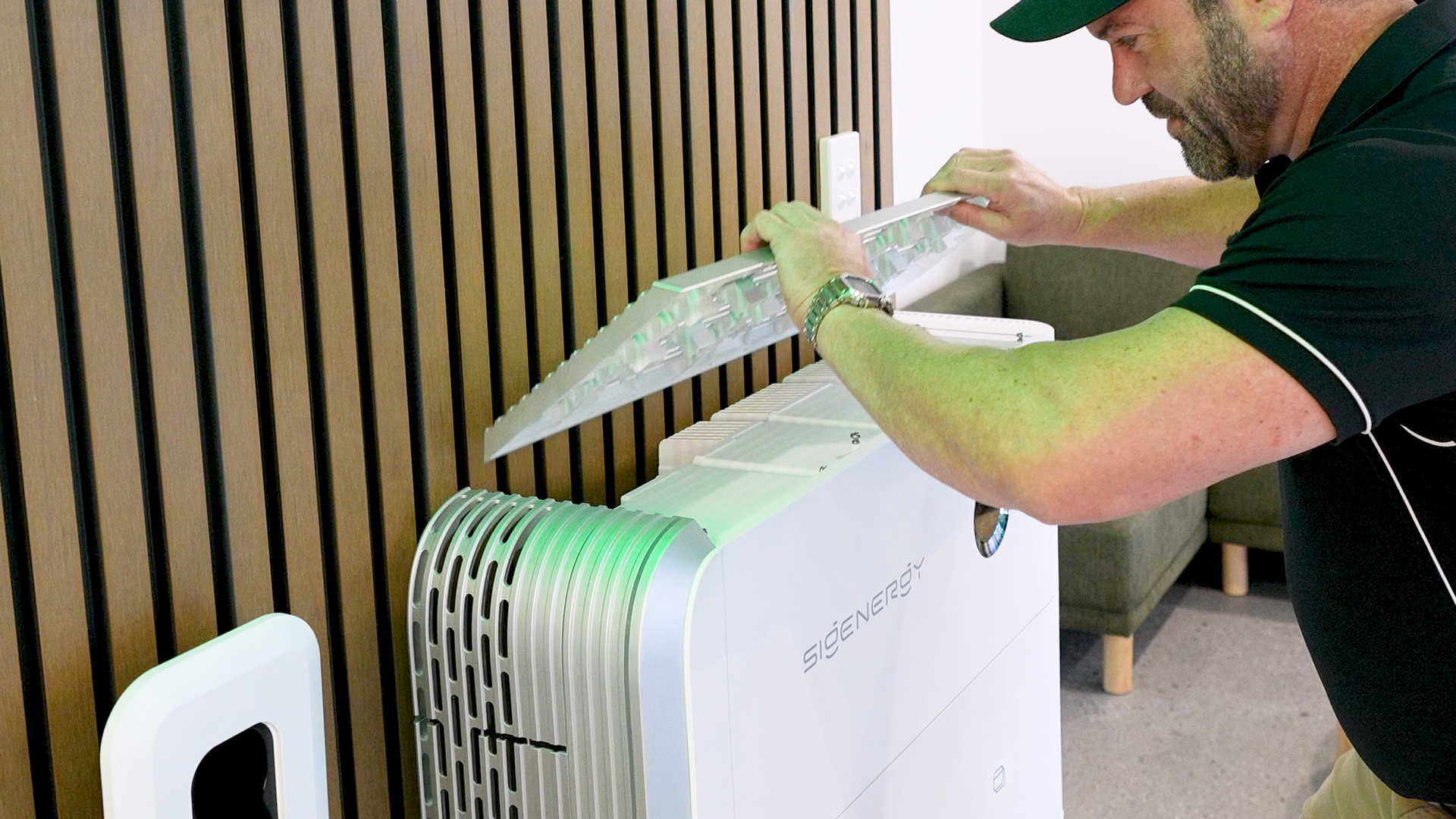
2.b Remove the Right Side Inverter Cover
Next, you’ll need to remove the right-hand side cover on the inverter. This cover will need to be pulled upwards to remove it. If it is tight, you can use a screwdriver, spatula or butter knife to help you push the panel up to remove it.

3. Open the mySigen app
On your smartphone, open the mySigen app.
4. Open Settings
In the bottom right corner, click ‘Settings’ to open the settings menu.

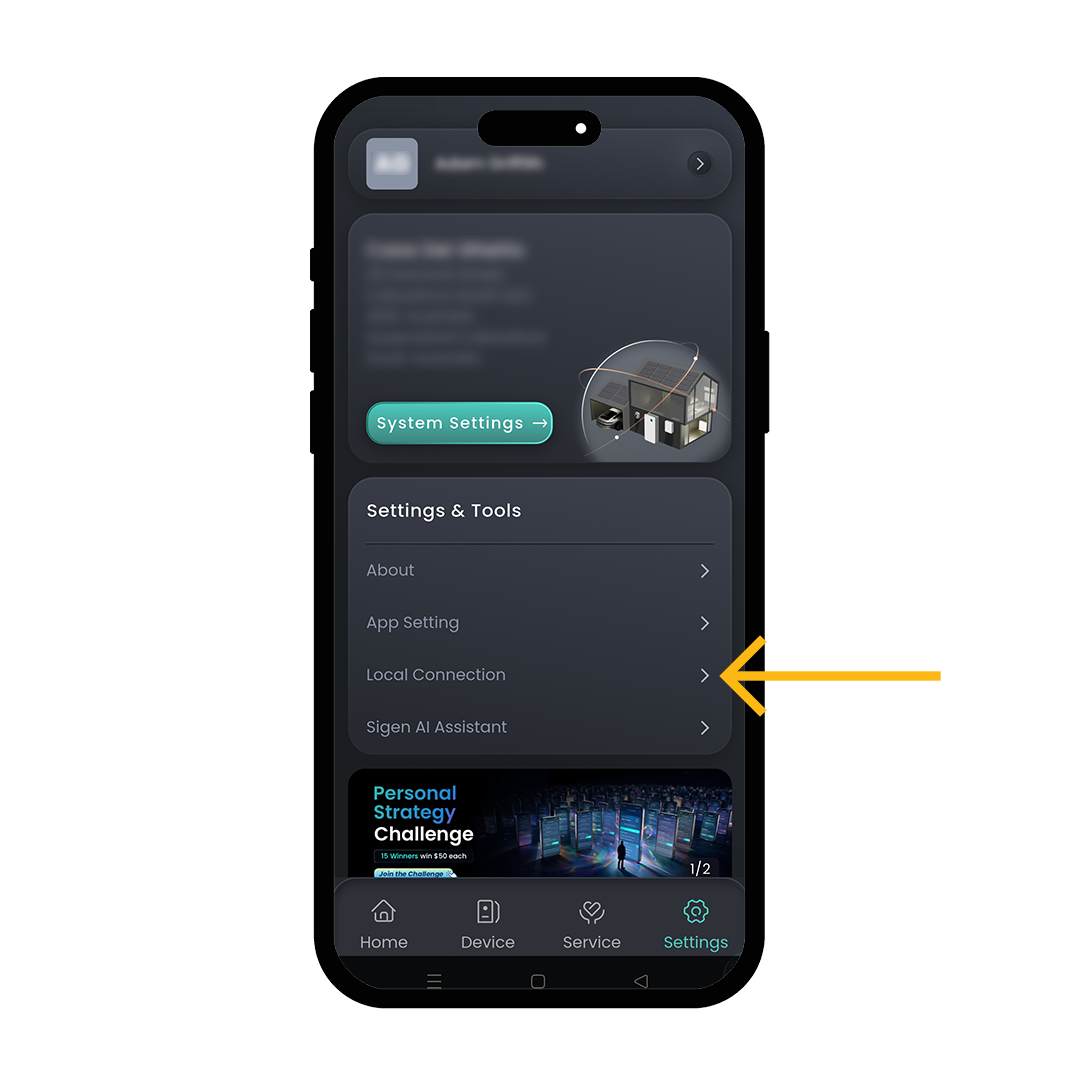
5. Open the ‘ Local Connection’ menu
Under the ‘Settings & Tools’ section, click ‘Local Connection’ to open the connectivity menu.
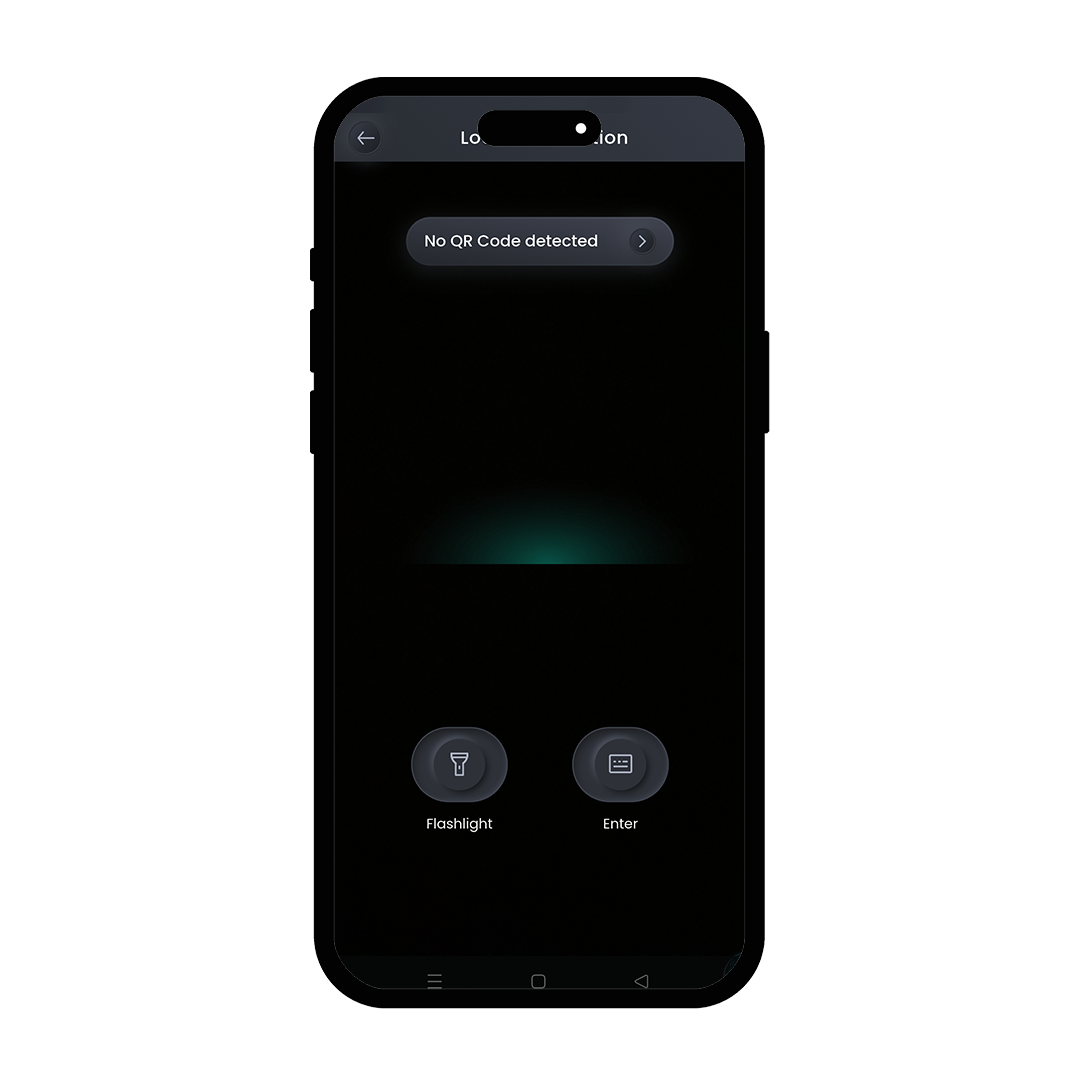
6. Scan the QR code on the Sigenergy Inverter
On the right-hand side of the inverter, there will be a sticker with information about the inverter. This sticker will also have the QR code that you will need to scan. If your sticker has two barcodes, the WiFi connection QR code is the larger one at the top of the sticker.
Using your smartphone, scan the QR code.
Connectivity Issue Fix
If you are trying to complete this process and your phone is unable to connect to the SigenStor’s hotspot, your phone will display the error message “Unable to join the network”.
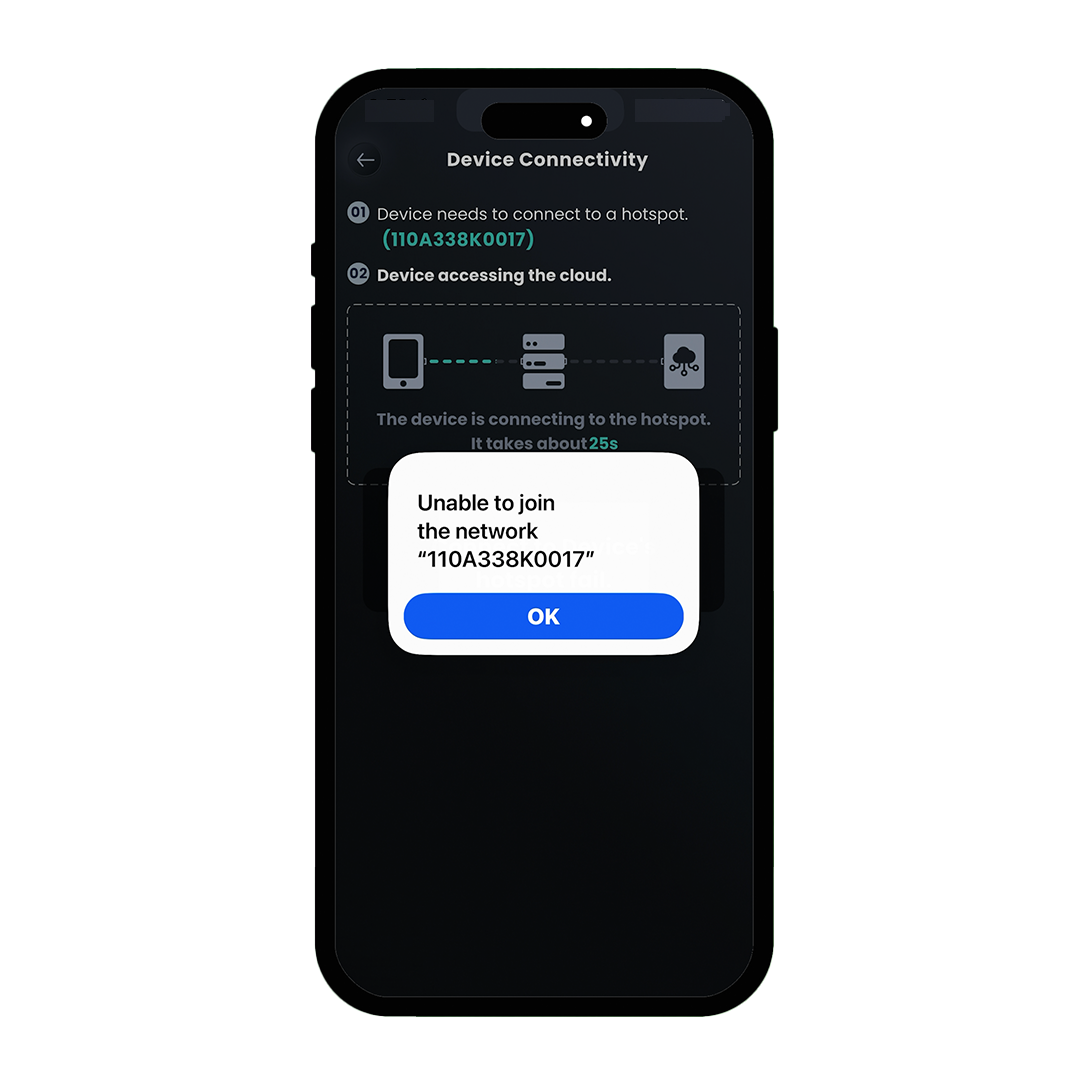
When this happens, you will need to shut down and restart (or power cycle) your system. To do this, turn off the AC switch and the DC switch before turning them both back on again.
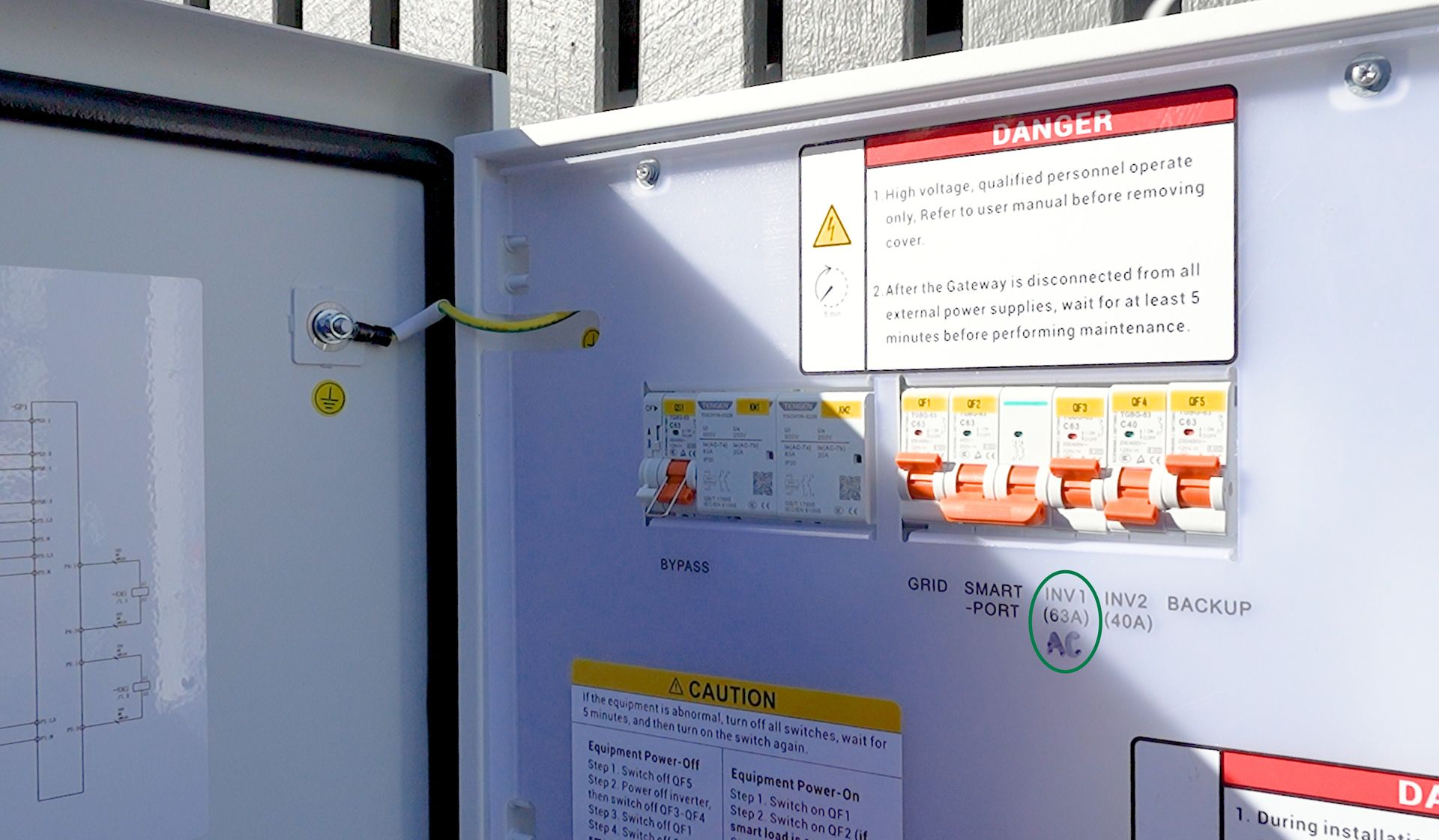
a. Turn off the AC Switch
If you have an AC inverter isolator, you can simply turn this off to turn off the AC grid supply. If you don’t have an inverter isolator, you’ll be able to turn off the AC supply within your Sigen Gateway. Within the Gateway, this switch should be labelled “Inverter Supply”. Flip this switch up to turn off the supply of AC power to the inverter.
b. Turn off the DC Switch
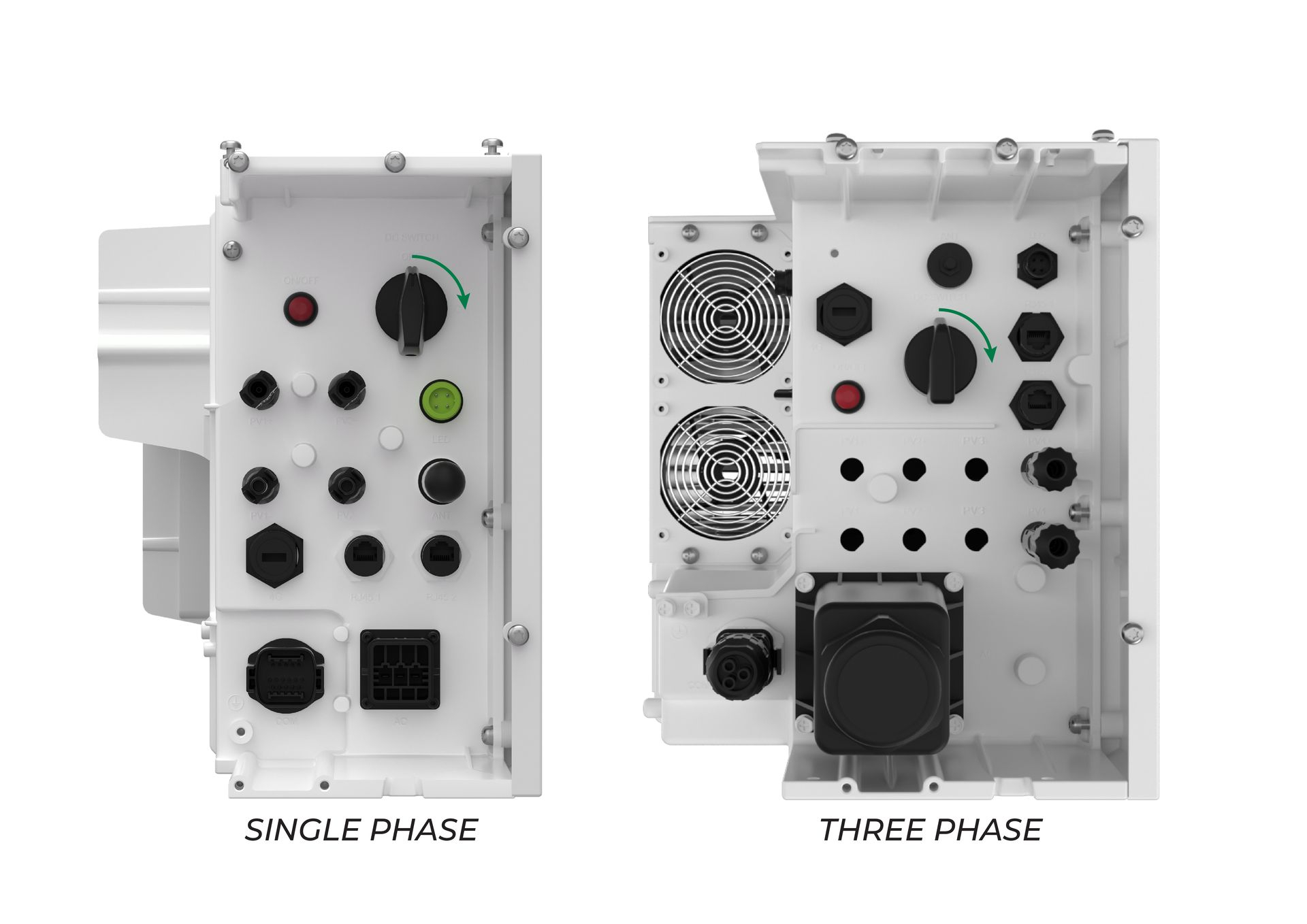
Next, you’ll need to turn off the DC supply on the inverter. The DC switch can be found behind the left-hand-side cover of the inverter.
Like before, you’ll need to pull the covers off of the inverter, and the back cover just gets pulled up. You can also take off this front corner cover to make it easier to access the switch. It can also be pulled upwards, but be careful when taking this one off as it contains cable connections.
Inside this panel, you’ll need to locate the DC switch and turn it to the OFF position. If it’s already in the OFF position, that’s okay; you can leave it turned off.
c. Restart the System
Wait a few minutes to ensure that the inverter has completely turned off before restarting.
To restart, simply repeat the above steps in reverse order. Turn the DC Switch back to the ON position, then turn your AC/Inverter Supply switch back on. It may take a few minutes for the inverter to turn back on fully.
Completing the restart will prompt the inverter to turn on its hotspot for you to connect to, which is crucial to being able to connect it back to your WiFi. Once the system is back up and running, give it a minute before attempting to reconnect your WiFi.
7. Select Home Network
Once your phone is connected to the Sigenergy Inverter, it will begin searching for nearby WiFi networks. In this section, scroll down until you find your home network. Click on your home WiFi network.

11. Enter your WiFi network password. Click Join.
12. Success
Once connected, a tick will appear next to the name of your WiFi network to indicate your inverter is connected to the WiFi. Click ‘Finished’ to close the window.

Further Support
If issues continue to persist and your Sigenergy Inverter was installed by Springers Solar, we can help you directly. Submit a ticket here, and we will aim to respond within three days.
Springers Solar | Queensland's Most Experienced Solar Installer
Springers Solar provides quality components with proven performance, backed by industry-leading warranties, and dedicated after-sales support. Thousands of satisfied customers over more than 23 years of operation make Springers Solar one of the most established and experienced solar companies in Australia.
Springers Solar has received multiple awards for design and installation and is a certified/preferred installer for a large range of solar panel, inverter, and solar battery manufacturers, including Sungrow, Tesla, and Sigenergy.
Our dedicated in-house team of electrical engineers, project managers, solar PV designers, solar installers, and electricians work closely with you before, during, and long after your project is completed. Springers Solar offers an industry-leading 10-year workmanship warranty which is a testament to our qualified staff and offers you outstanding value and peace of mind.
How to Connect Sigenergy System to WiFi